Clicking on Manage in the top menu and then selecting Providers & Suppliers will take you to the supplier management tab. Here, you can view the list of all Providers & Suppliers across your entire company account, not just within the active workspace.
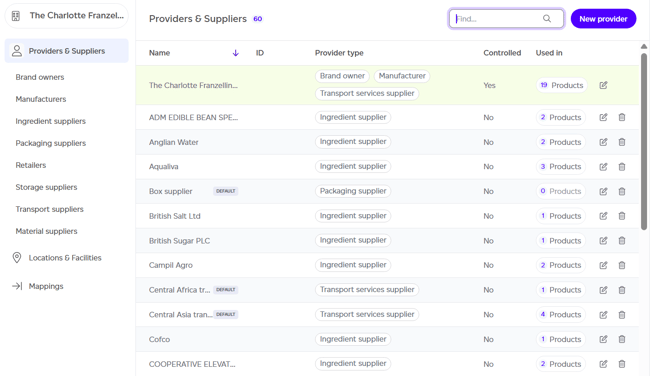
By default, you will see one entry representing your company name, with a default type set as ‘Brand owner’. This can be edited to reflect the type of company you are, such as manufacturer, brand owner, or ingredient supplier. A single supplier can represent multiple provider types (e.g. both a manufacturer and a brand).
Several actions are available in this section:
-
To create a new provider, click the ‘New provider’ button.
-
If at least one provider has been created, you can also:
-
Search for a specific provider by name.
-
Filter by provider type using the left menu.
-
Sort by different fields in the table.
-
Edit a provider’s details.
-
Navigate to other sections of the Manage tab using the left menu.
-
Creating a New Provider
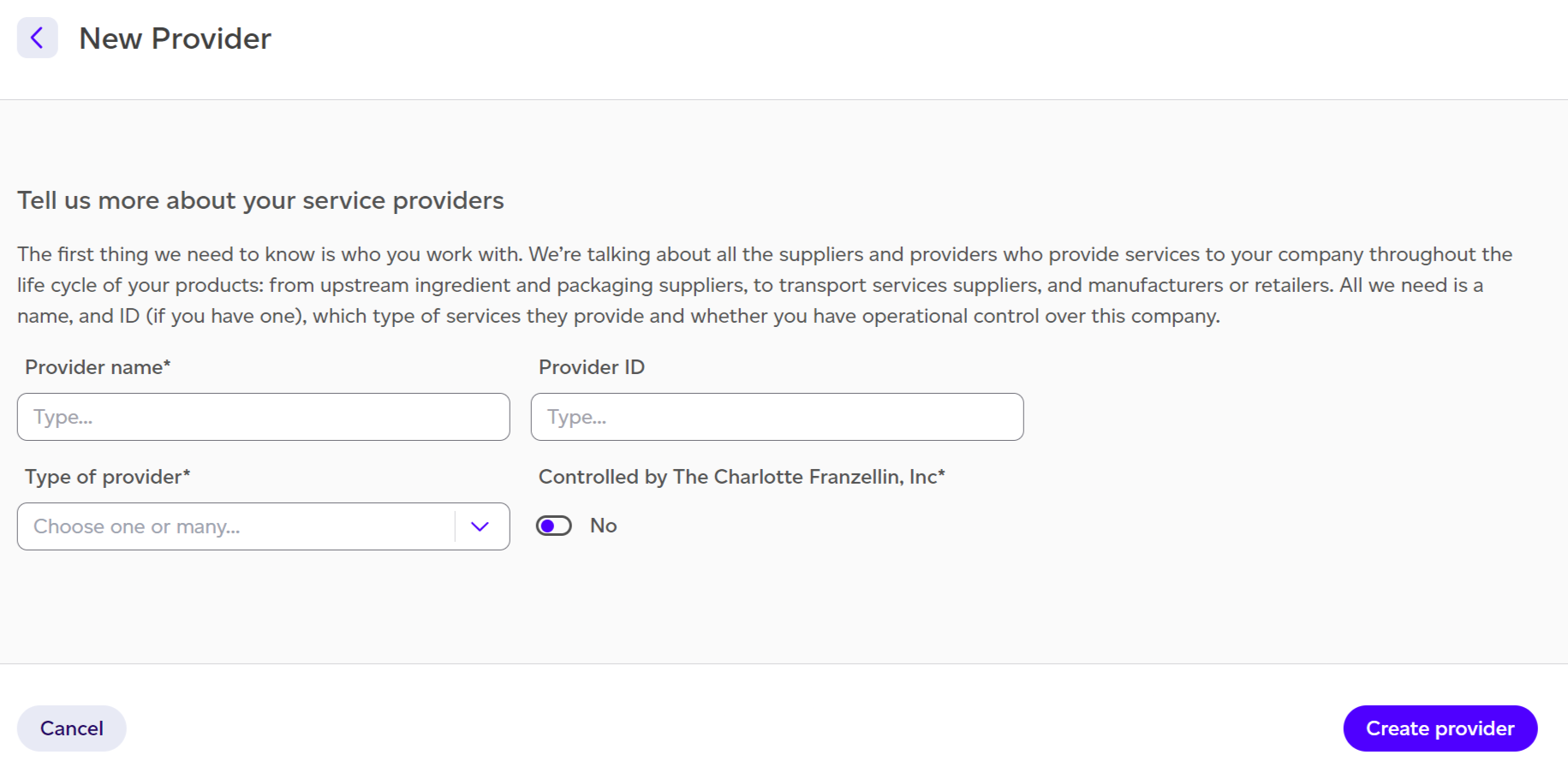
When creating a new provider, you’ll be prompted to enter the following information:
-
Provider name
-
Provider ID (optional)
-
Type of provider, where you can select one or more types (e.g., manufacturer, brand owner, ingredient supplier).
-
Controlled by you toggle: This allows you to specify whether this provider is under your company’s control, which is important for reporting purposes.